Multiple screen - decouple the viewpoint in each new window added

I too am frustrated with the current lack of controls Asobo have given us. I posted a similar thread just now. Here’s a copy paste:

I’m trying to create a mock passenger cabin. I have planned everything but the passenger window view. MSFS doesn’t allow me to lock the camera movement on a secondary render window or change where it is in 3D space like the drone camera.

I need the ability to move the camera in the flight deck with my mouse as usual but have the display acting as the window in the passenger cabin stay still.

As mentioned, you can’t get a second render window down the back in the passenger cabin in the first place as the only options are to change the horizontal/vertical rotation and the roll of the camera.

I’m so close yet with this one issue so far from making this a reality.

I’ve seen this feature talked about before from others who want the same. I’m not the only one who wants the ability to move and lock the camera in secondary render windows.

Thanks.

Let’s hope they do this some day. It really is a shame that the most beautiful and realistic looking simulator is like a child’s toy compared to the options given by P3D/XP. Imagine the possibilities if details like this, shared cockpit, proper weather/radar ect were added.
1 Like

I can’t complete my cockpit without this.


Please multi-window

2 Likes

Unfortunately this issue is not on any Asobo list of action items. Perhaps the core code changes announced for 2024 are required to allow camera selection in a spawned window. This seems unlikely given that FSX already had it.

Another explanation for Asobo’s silence on this subject could be that their programmers are busy on higher priority issues like the accuracy of snow and the height of clouds – which are on their action items list (sorry about the poke in the ribs Asobo). :wink:

1 Like

I’m adding my vote for more comprehensive controls over the subsidiary windows. I fly with three screens: view ahead, and views to either side. Zoom is my specific problem, since it is not adjustable on the side windows (which are on separate monitors). So to keep a panoramic view across all three screens, the view ahead has to be set at the (fixed) zoom level of the views to either side. But then the instruments can be too small to see.
(I’m getting on a bit…) And flying the Mini 500 heli, I like to zoom and expand the main window across two vertically stacked screens to include the instrument pylon and the view downwards as well as forward. This I can do, but getting the side views to the same scale without a matching zoom control is of course impossible.

A thought has just occurred to me. Since I can expand the main view vertically across two screens, I wonder whether I could do the same thing horizontally, across three. It would probably distort rather than give me a panoramic view, though. I must have a look.

Meanwhile, a vote for more control over the additional windows.

The fact that Asobo came up with the multiple window solution that they did reinforces the belief that they didn’t understand/use flight simulators when they took over FSX from Microsoft. The current solution is simply a mirror of the main window, with the ability to pan it. Not at all what FSX and other flight simulators provided.

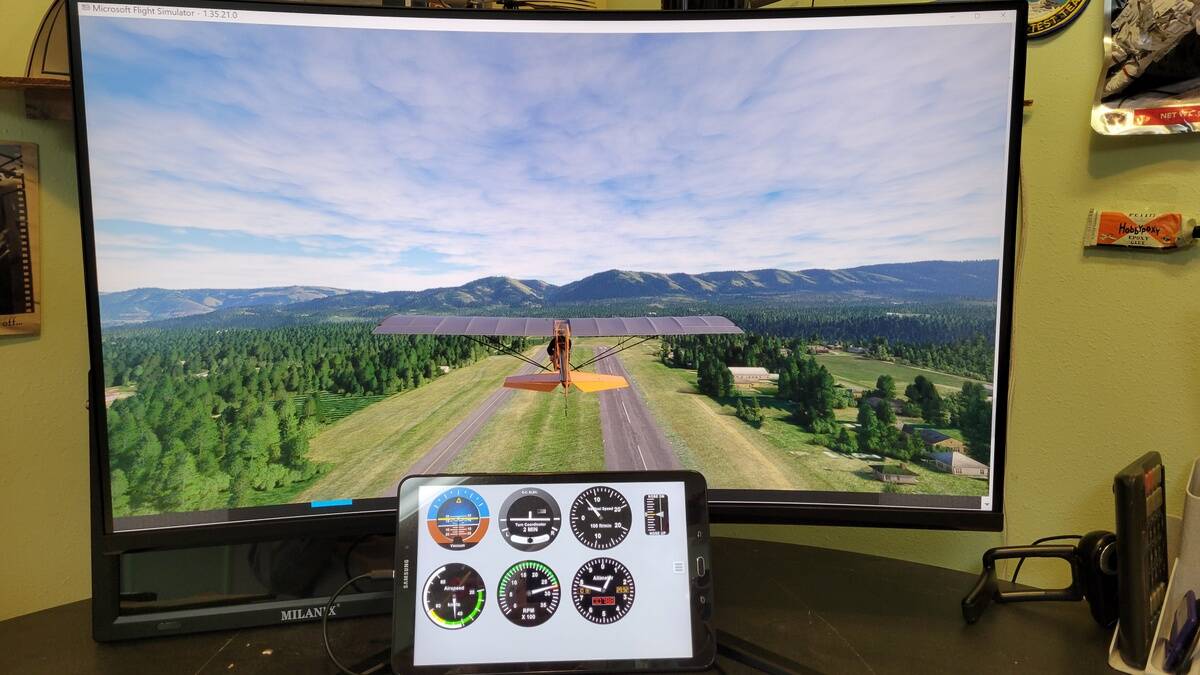
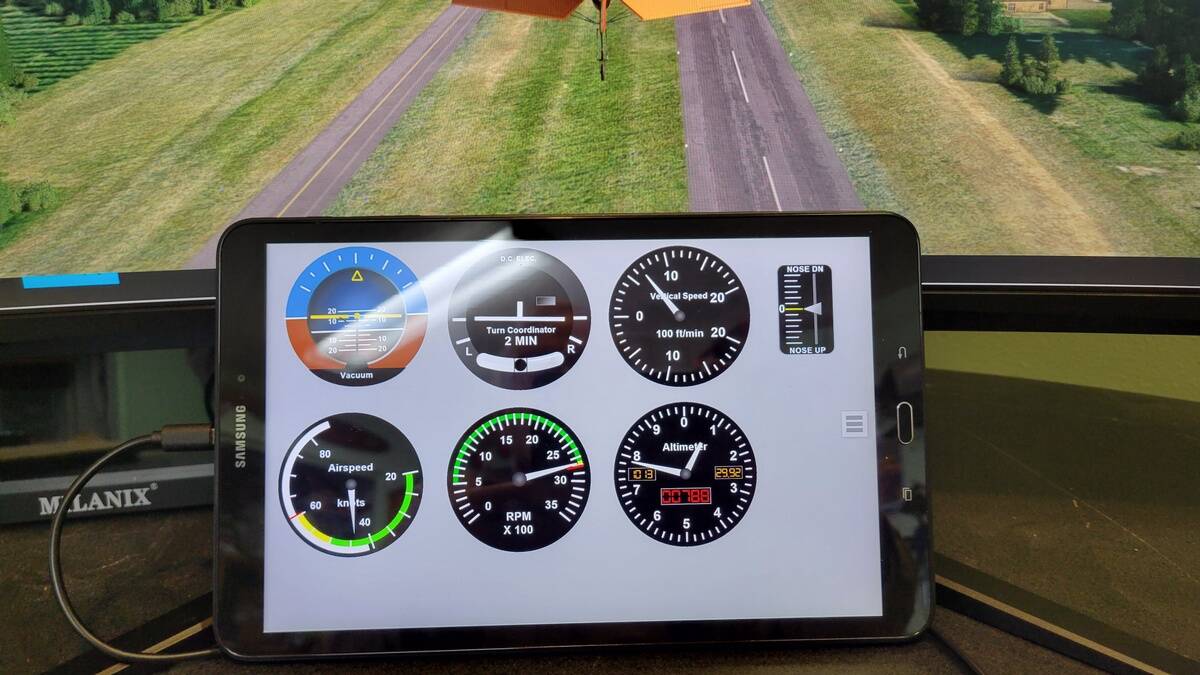
After spending many hours trying to come up with a solution for having the analog instruments on a separate monitor so that they are always in view, regardless of main camera selection/view, here is what I have come up with. This solution works well for me, and the kind of planes I fly, and as it turned out, it cost me nothing to implement.

Using a 2016 Samsung 10" tablet I had that wasn’t in use, along with the free software product called “SpaceDesk”, I set the tablet up as a second monitor. Then, using a product I already had called “Panel Builder” I put the basic flight instruments onto the tablet. Now I always have the instruments in view, no matter what the view choice in MSFS.

This is what I was trying to achieve in MSFS, without the need for 3rd party addons, but even at year 3 of MSFS is still not available (was not carried over from FSX).

Of course this solution does not provide a realistic panel for a given plane, and involves hassling with 3rd party products. But it allows you to stay straight and level, make coordinated turns, control your speed on landings and maneuvers, see if you are climbing or descending, etc., while you have an outside trailing view, or are making a video.

About “Panel Builder”: Version 3 costs $30, but only comes with the basic “six pack” of instruments (which is sufficient for my kind of flying). However, Version 2 that I have came with hundreds of instruments. I compared usage and performance of 2 vs. 3 (trial version) and could find no significant difference, so decided to stick with 2, giving me a lot more instrument choices. Setting up an instrument panel for a plane is easy, and the setups can be saved per plane. To customize the max/min/yellow/red on say a speedometer you just use some drop-downs on the instrument to set as desired. No programming knowledge is needed. I’m not sure if it’s possible to buy Version 2 with the full pack of instruments. The instrument pack for Version 3 can be purchased for an extra $40.


1 Like

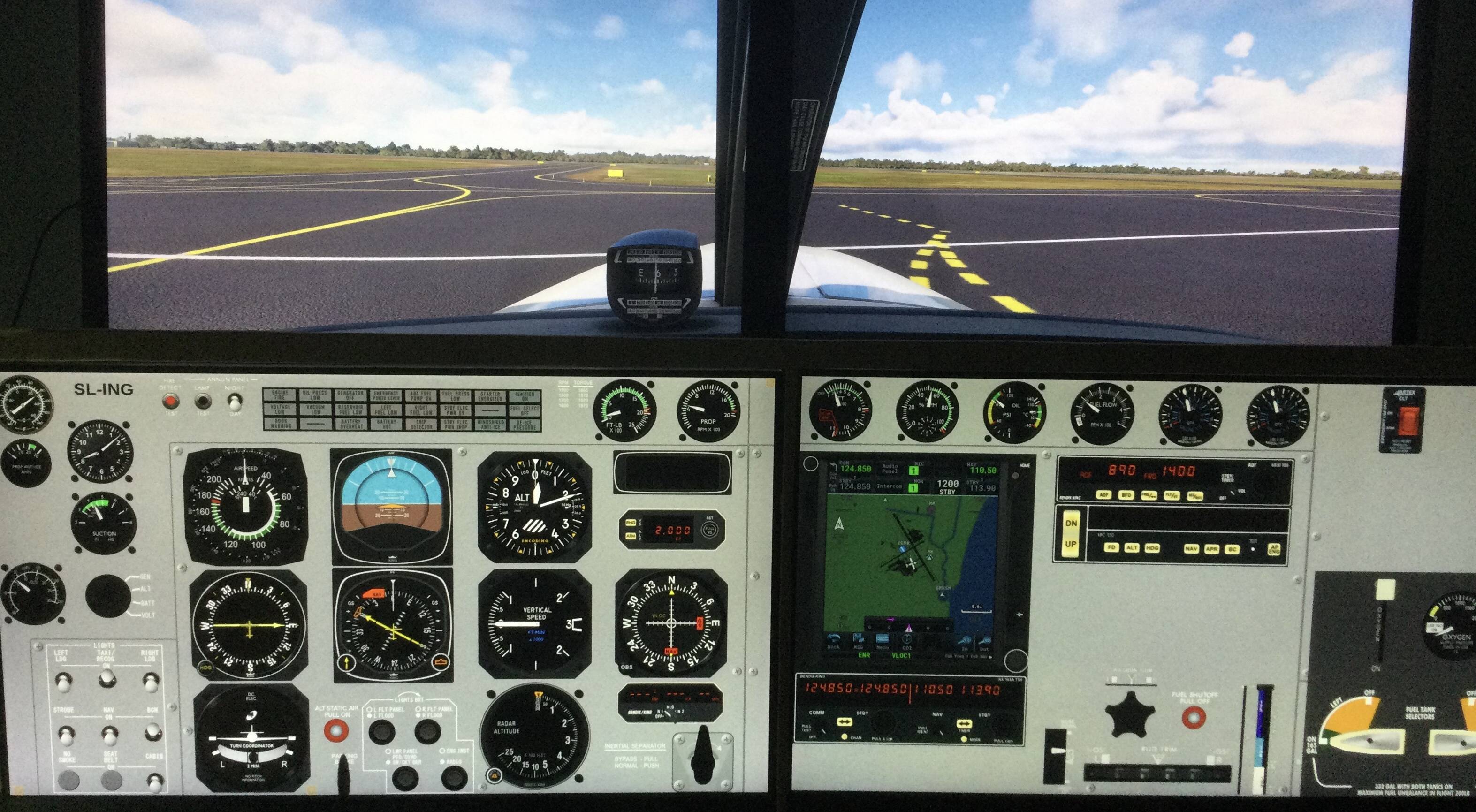
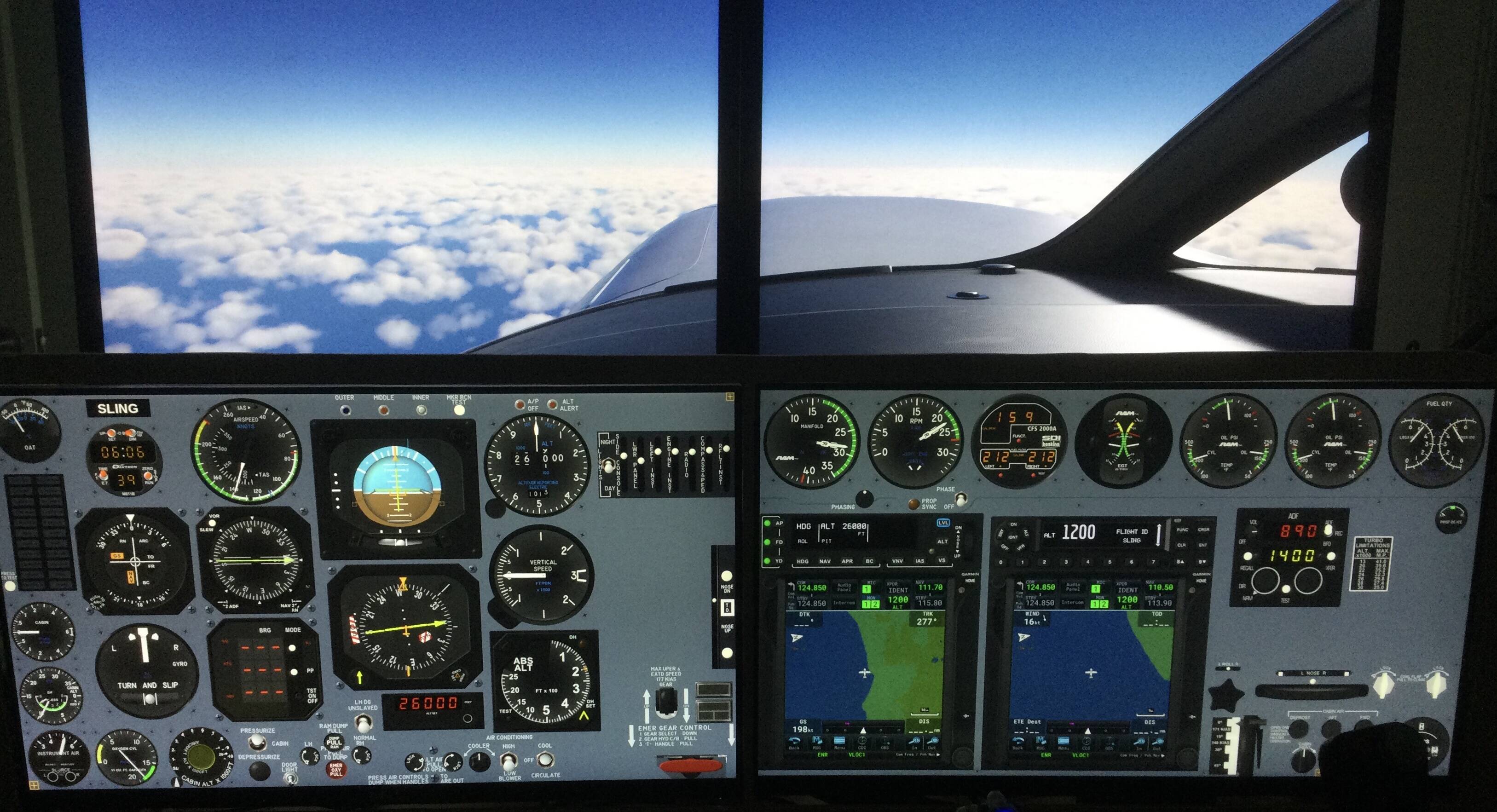
More immersive and realistic panels is my thing. A quick glance over the instruments and then look up to your main monitor(s) for the outside view. No messing around with views or head/eye trackers needed if so desired.


1 Like

There is no need f zoom on different multi screens to create with this panoramic view .
I can get it perfectly aligned and with the right zoom, but i do not set it up ingame perspective
But from hangar perspective
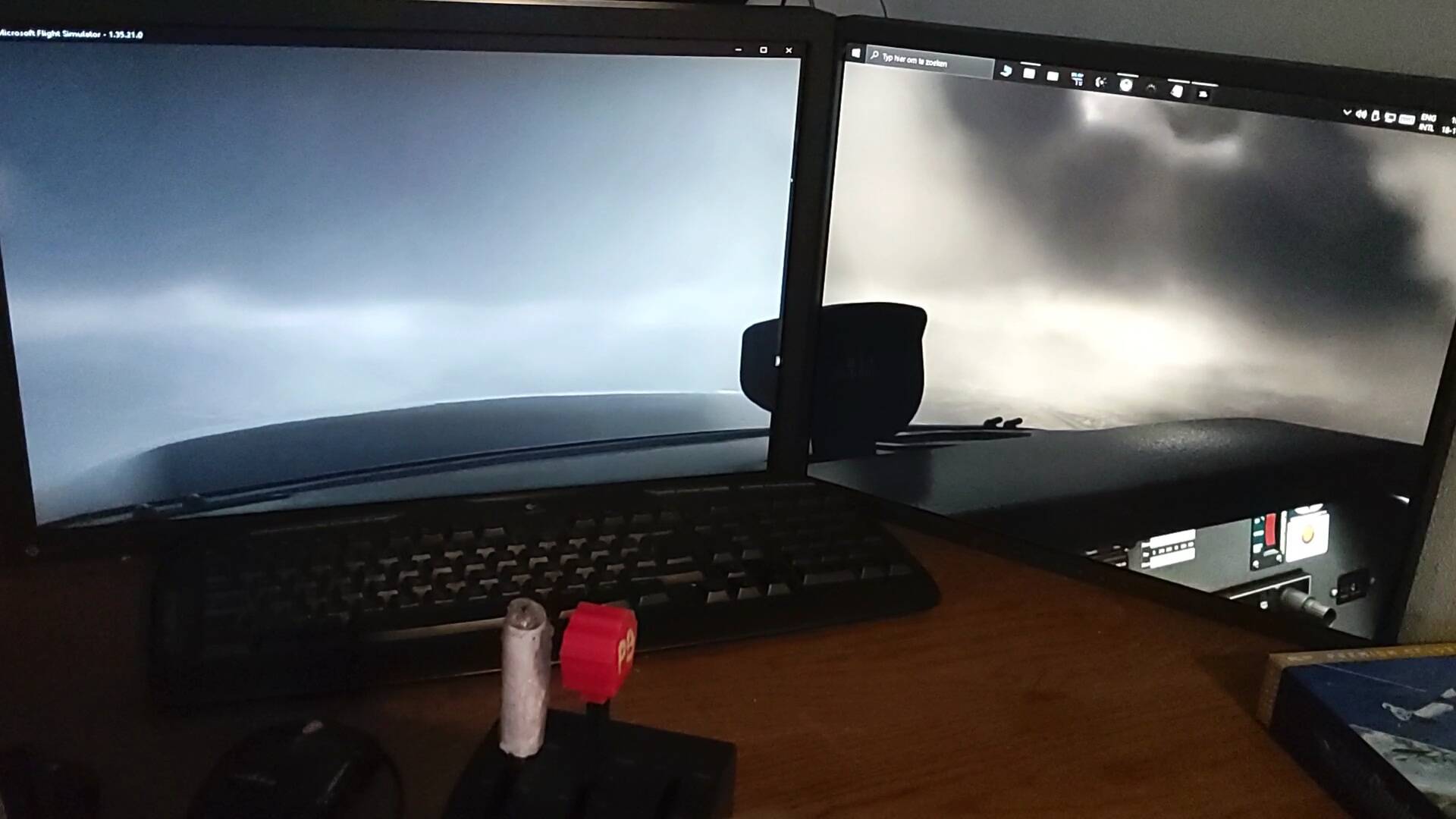
Here is a picture of 2 screens but today i added a 3th one to my computer, but i forgot to take a picture with 3 screens

Also im working on a tutorial explaining how i had this done, and make a video along with it
This take some little more time to finish.

The ability to look around in the cockpit, for this you have to turn of " home cockpit mode"
Under camera settings in general options
If turn this of and when you click mouse wheel you should gain control over it unless you have assigned something else to mousewheel, for home cockpit mode dissables it to a locked view
Which you can only work around with left shift + arrow keys or assign pov to it on yoke or joystick.

And concearning passenger cabin view might be optional if you figure out which external view in chase view ( gui nr expose in dev mode under blend view i think) when you got gui number you need to edit under this number the initialxyz = and fill in the position you want to view from.
This is how i would approach it
Main reason for me to think this way would be because you can look around (mot know if this works but worh to try
And also a possible way is to assign a instrument view to different spot in the airplane which then bring you to your cabin seat.
Same as described as in the chase view.

Hope this offers some perspective

Sebastiaan

@autopylit88
Please add the MSFS 2024 tag to this request. Thanks!

It looks like the 2024 tag is already added

Or vote on this dedicated 2024 thread here that seeks improved Multi Monitor support in a variety of areas (including viewpoint)

1 Like

A post was merged into an existing topic: Microsoft Flight Simulator 2024 General Feedback

I just switched from FSX to MSFS 2024. Boy, was I surprised. I thought MSFS would be FSX on steroids. Wrong. Simple things that FSX did well, MSFS either doesn’t even do, or is difficult to do. For example, multi-view you had mentioned earlier. FSX, easy as pie. Create a new view, Undock window and boom, done. And I used it all the time. So easy, functional and fun. MSFS no way. Doesn’t make sense as to why they would take this away. And I do believe there are a lot of users that would love to have this functionality. If FSX had the graphics that MSFS 24 has, I would switch back.

Even creating a new window in MSFS is a pain. Create new window, use three sliders to try and guess what you need to see. Rinse, repeat multiple times until you eventually get it right. Who in the heck designed this? The worse UI imaginable. Again, in FSX…click a screen and then use the keyboard or HAT switch to simple move and adjust the view. Simple.

If I’m missing something or doing something wrong, please let me know.

1 Like